Guides
Step by step through everything Budget Manager does — from your first transaction to connecting an AI assistant.
First steps
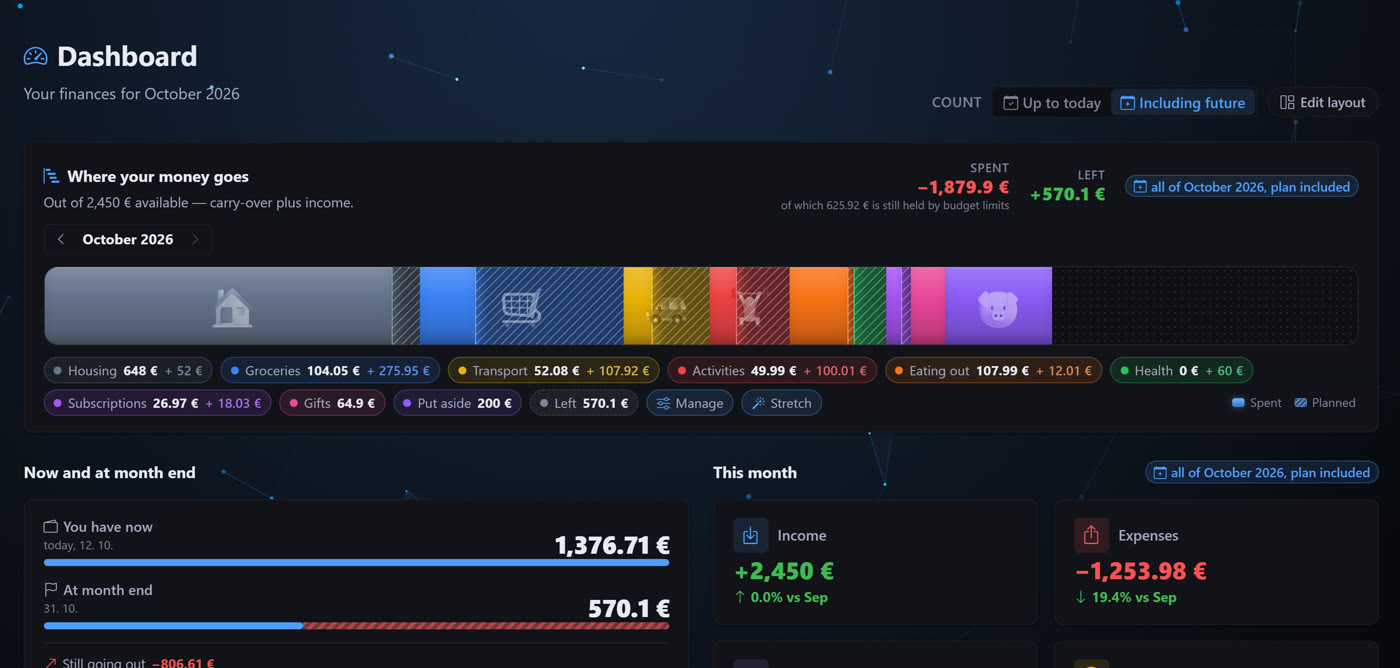
Your first steps From an empty account to an overview that adds up — in five minutes.
Steps
- Create your account Sign up with an e-mail address or with Google. Confirm the e-mail — without it you will get neither alerts nor password recovery.
- Walk through the setup wizard After your first sign-in a short wizard greets you: pick the language, the currency you live in, how much of the app you want to see (from simple to everything) and the colour of the look. If you leave halfway, it carries on where you stopped the next time you sign in. Tip None of it is permanent — everything can be changed under Settings → Application. If you earn in several currencies, add the others in the Currency tab and switch between them in the top bar.
- Find your way around the menu On the left is a slim strip of icons. The dashboard is one click away; the other screens sit in the Finances, Overviews and Assets and plans sections — hover over a section icon and a panel with its screens slides out. Tip Prefer to see the names all the time? The arrow at the bottom of the strip expands the full menu, and the app remembers it. On a phone, open the menu with the button in the top right corner.
- Record your first income Go to Transactions and add your salary. Income is what the whole month is calculated from — without it the app has no idea what you can count on.
- Split your money into budgets Create a few budgets — rent, food, transport, fun. Every expense then goes under one of them and you can see at a glance how much is left where. Tip Do not aim for a perfect split straight away. Start with five budgets and add more once you notice something is missing.
Currencies and currency accounts How to keep euros, crowns and dollars apart without the numbers getting mixed up.
Steps
- Open the currency settings Settings → Currencies. You will see the list of your currency accounts and which one opens first.
- Add another currency Pick the currency code and the symbol shown next to amounts. The new account starts empty — transactions are never carried between currencies.
- Switch between accounts The currency switch sits in the top bar. Everything below it — the dashboard, budgets, goals and statistics — belongs to the currency you have selected. Tip Set the currency you use most often as the default. It opens right after you sign in.
Everyday use
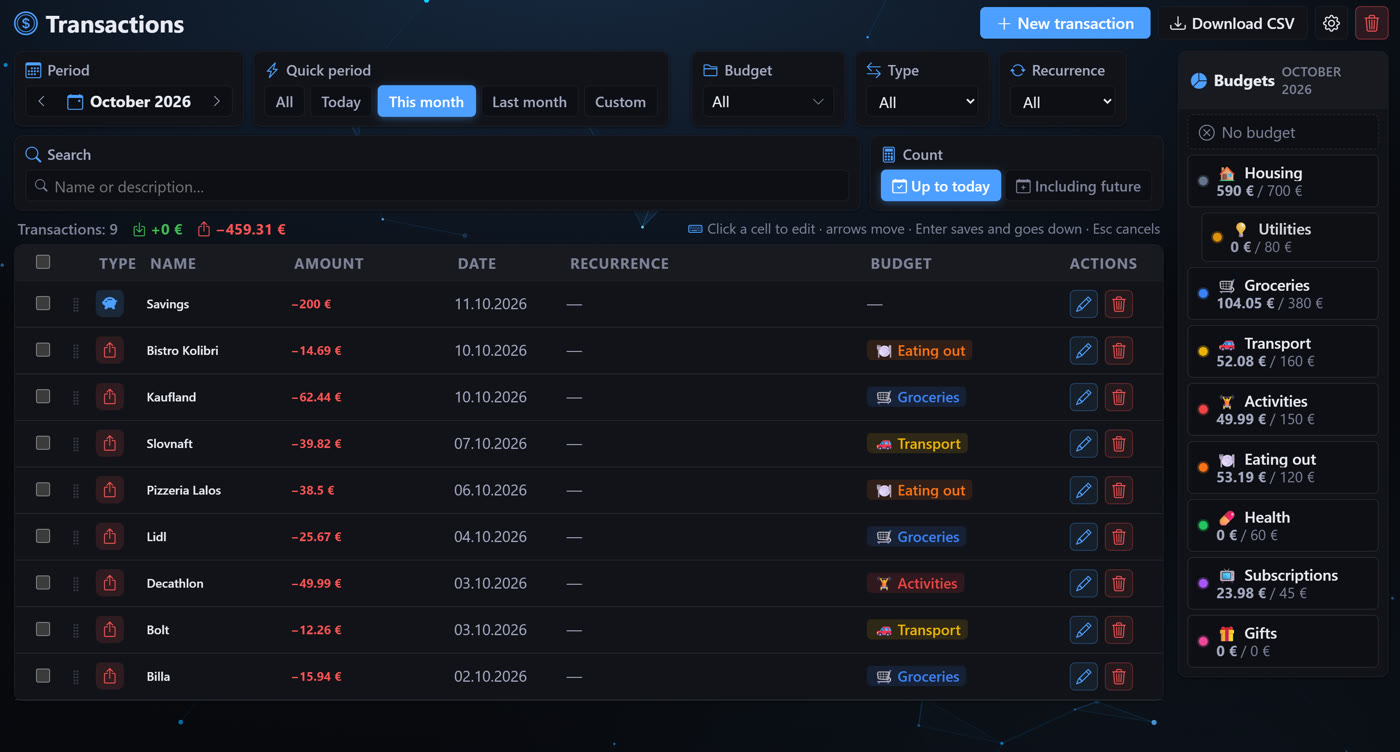
Transactions Recording income and expenses, sorting them and finding them again later.
Steps
- Add a transaction On the Transactions page press Add. Fill in the amount, the date, the type (income or expense) and a short description you will recognise later.
- Assign it to a budget Choose the budget an expense belongs to. That is what makes Budgets and the statistics show where your money actually goes. Tip Forgot to sort older expenses? Select them in the list and assign a budget to all of them at once.
- Find what you are looking for The search box in the top bar also opens with Ctrl + K. It searches descriptions, amounts and budget names.
- Deleted is not gone A deleted transaction goes to the bin first and can be restored from there. Permanent deletion is a separate step you confirm yourself. Tip The bin empties itself after a while, so old records do not pile up in it.
Recurring payments Rent, subscriptions or salary are entered once and the app keeps counting on them into the future.
Steps
- Turn on recurrence When adding a transaction, turn on recurrence and choose how often the payment comes back — weekly, monthly or yearly.
- Say how long it runs Set an end date if you know when the payment stops. Without one it keeps running and shows up in every future month. Tip You do not have to delete a cancelled subscription — just give it an end date and the history stays intact.
- Look ahead In the Calendar and the Monthly plan you will see recurring payments in months that have not arrived yet — including what is left after them.
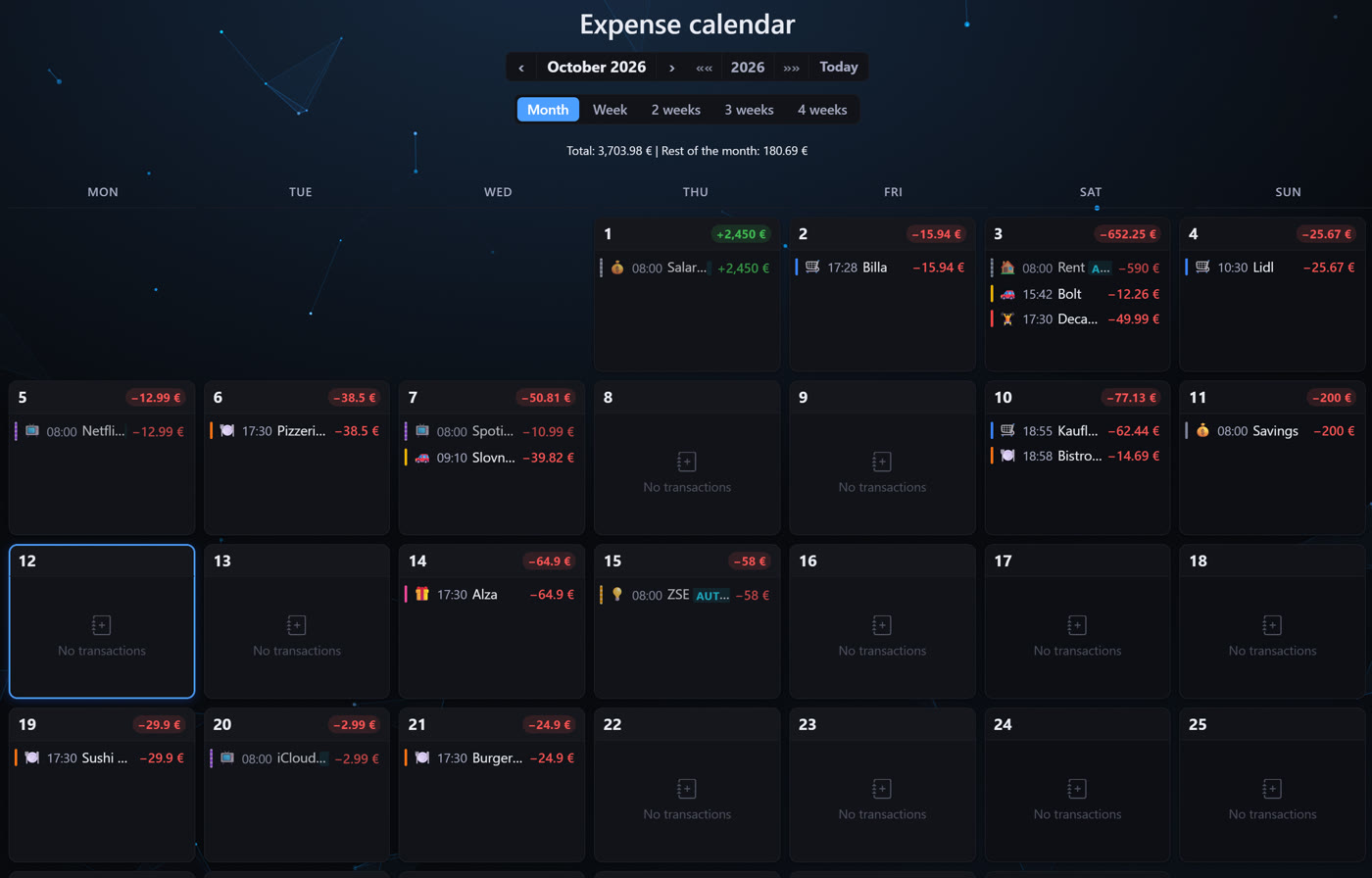
Calendar and monthly plan What leaves when and what arrives when — day by day, on one screen.
Steps
- Look through the month Every day shows its own total. Click a day to expand the transactions behind it.
- Move to another month The arrows move you back through history and forward into planned payments.
- The monthly plan shows a month and the whole year Pick a month on the left and see income and spending against the plan, carry-over and balance at the top. Click a budget to see its transactions next to it — planned and paid. Drag a transaction onto another budget or month. The yearly summary and chart are in the Analysis tab. Tip Closed months are read-only so that your history does not change by accident. When you need to fix something, unlock them with the padlock button at the top of the plan.
Planning
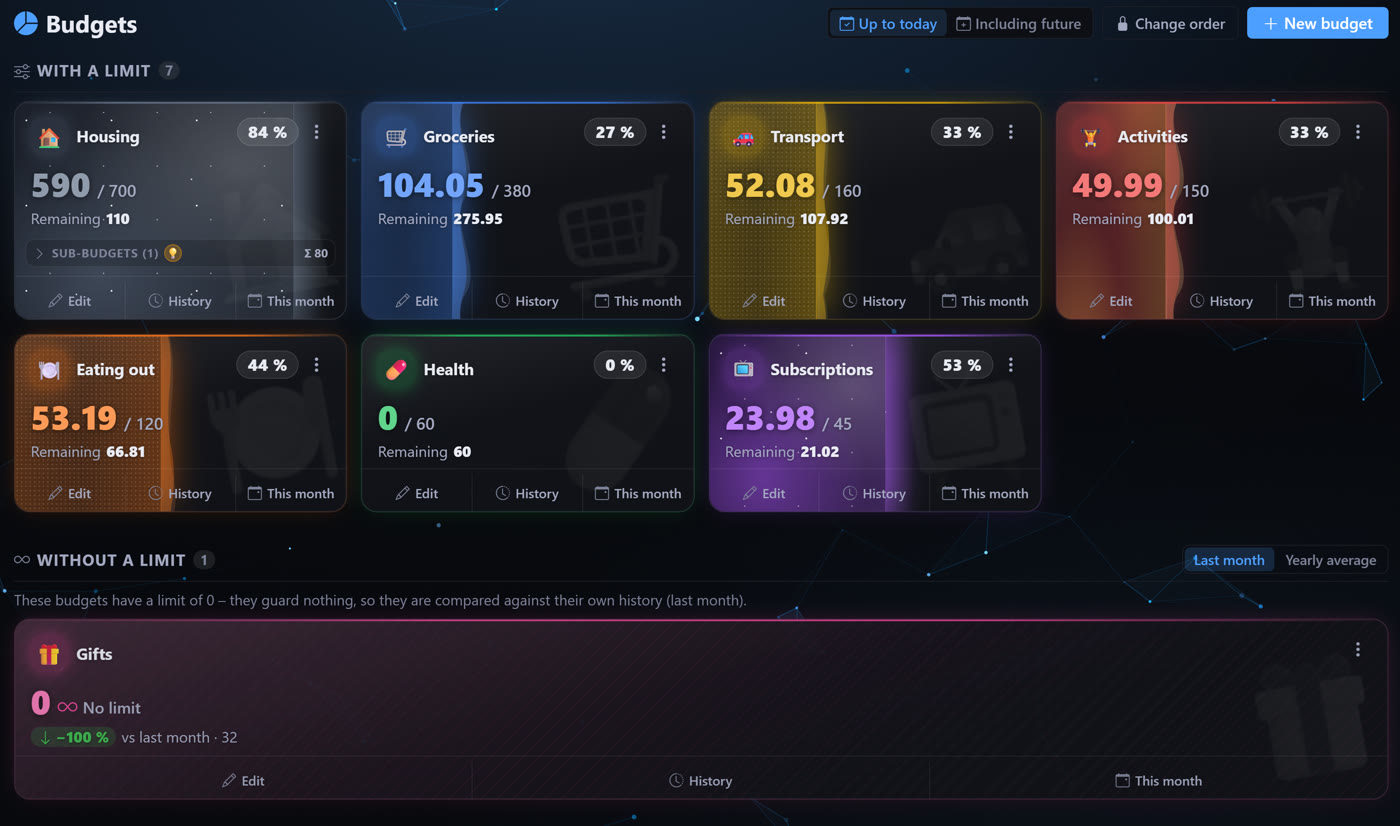
Budgets Splitting money into categories, monthly exceptions and alerts when a budget runs low.
Steps
- Create a budget Name it the way you think about that money — Food, Rent, Car — and set the monthly amount.
- Watch what is left Each budget shows both what is spent and what remains. The colour of the bar tells you whether it is comfortable or close to empty. Tip A budget is not a ceiling you must not cross — it is a plan. Your income is the real limit.
- Set an exception for one month December has presents, August has a holiday. You can give a budget a different amount for one specific month without touching the rest.
- Let it warn you When a budget approaches its amount the app warns you — you do not have to check it yourself. Tip You will find the alerts under the bell in the top bar; they can be dismissed one by one or all at once.
Savings goals and cash Putting money aside for something specific, and keeping track of money that is not in your account.
Steps
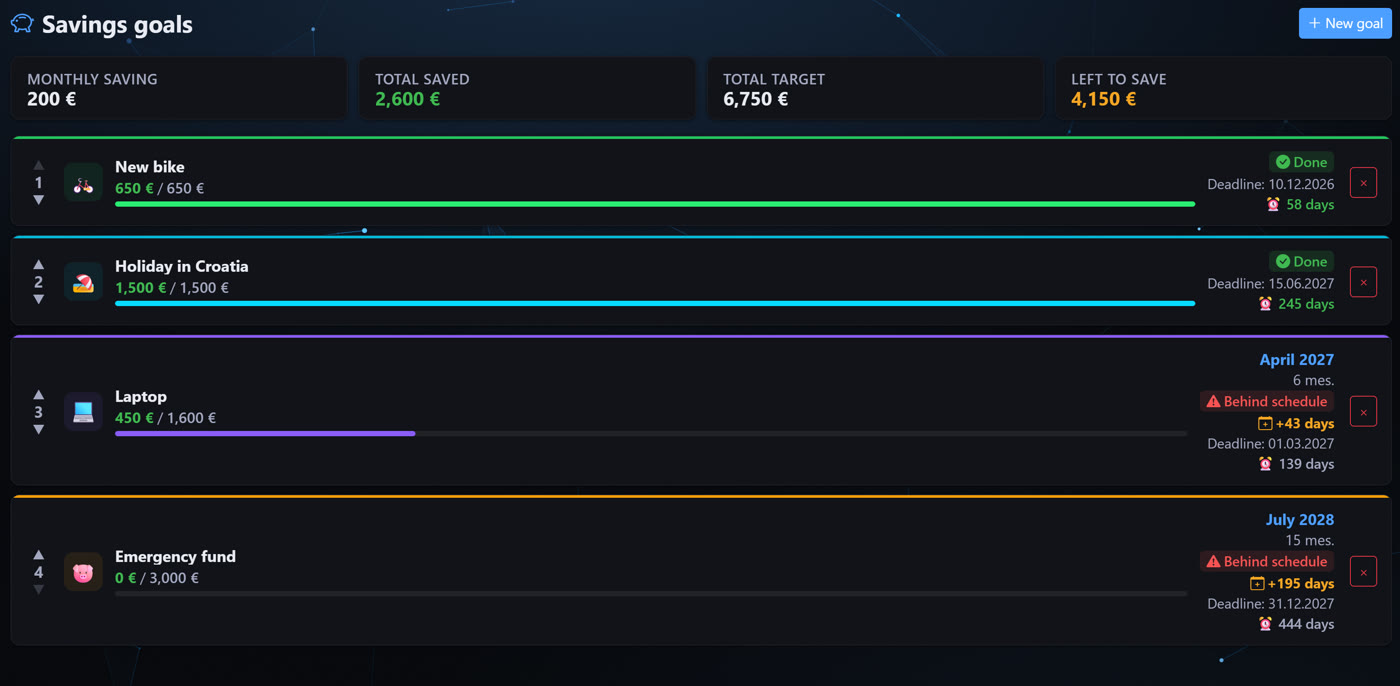
- Create a goal Enter what you are saving for, how much it costs and by when you want it. The app works out how much to set aside each month.
- Put money aside as you go A deposit into savings is an expense from your everyday money — it leaves the month and is added to the goal. A withdrawal works the other way round. Tip That way the month's balance and the saved amount both add up — the money is never counted twice.
- Order the goals by importance You can reorder the goals. Whatever sits at the top gets attention first — including on the dashboard.
- Record your cash Money in your wallet, in an envelope or at another bank goes into Cash. Your overall picture then no longer depends on a single account.
Statistics and the yearly overview Where the money goes, how that shifts over time and what it means for next year.
Steps
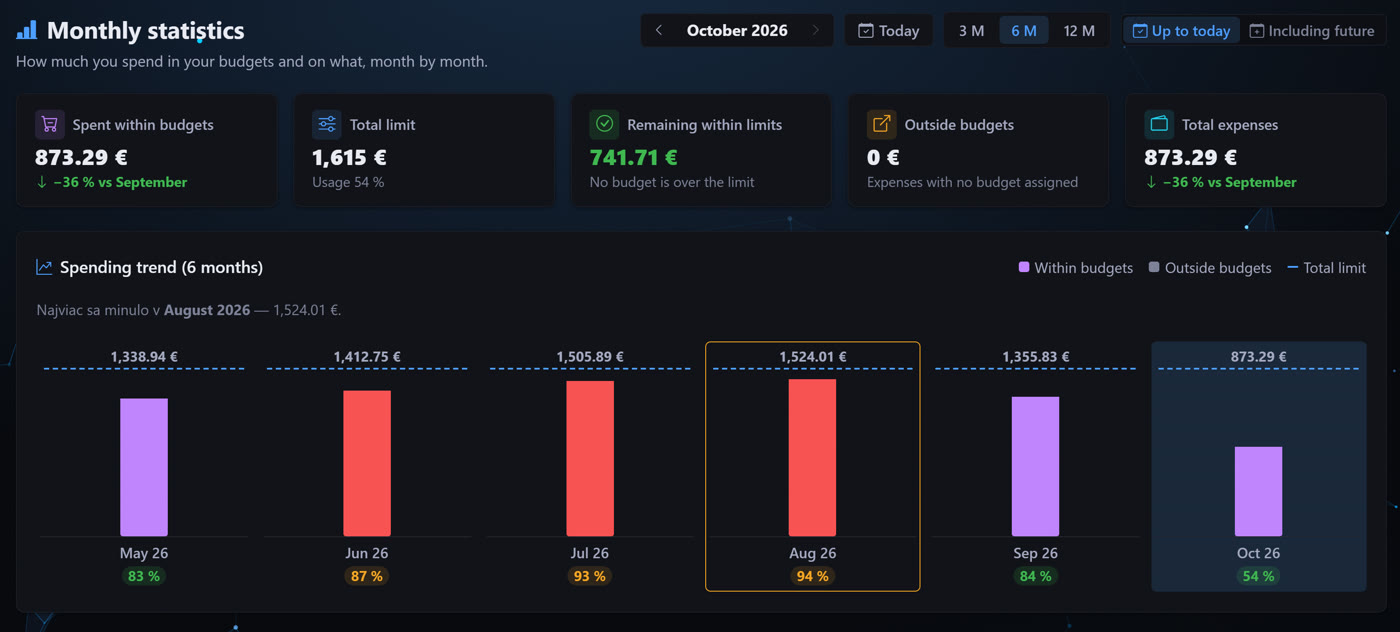
- See the month by budget The statistics show how much of each budget you spent and how that compares with earlier months.
- Choose the scope The switch decides whether the numbers stop at today or also include planned payments until the end of the period. Tip For comparisons with the past use the "up to today" scope — otherwise you are comparing a finished month with one still running.
- Move up to the whole year The yearly overview puts the months side by side. Seasonal spending that looks like a one-off in a single month stands out immediately here.
Integrations
The mobile app Recording expenses right at the till — and an overview of everywhere you are signed in.
Steps
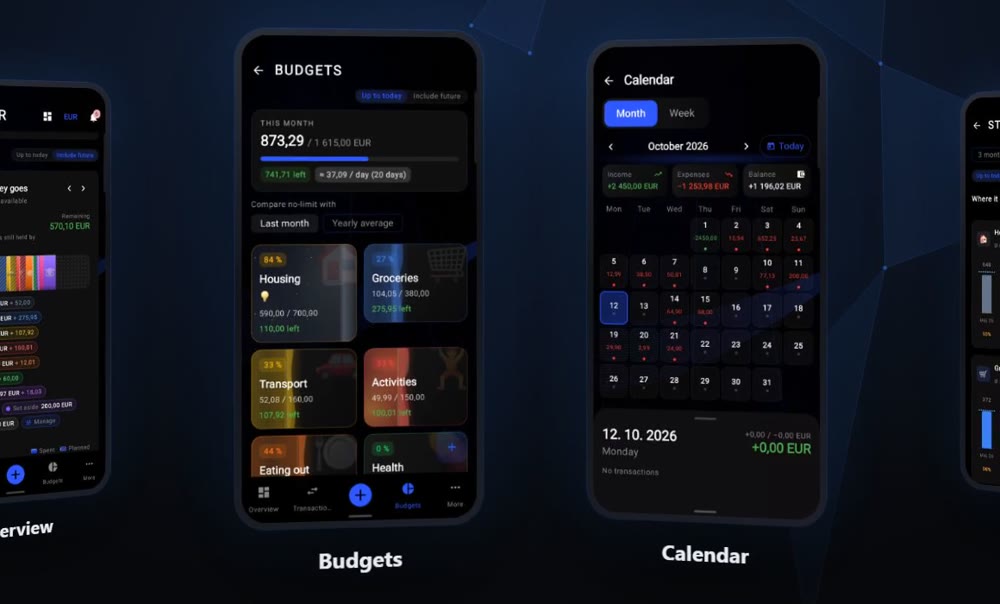
- Sign in with the same account Use the same e-mail and password in the mobile app as on the web. The data is shared, so a change shows up on both sides.
- Record as you go An expense entered in a shop appears on the web immediately — and the other way round. Nothing has to be remembered until the evening.
- Check your devices In Settings → Devices you can see everywhere your account is signed in, and end any of those sessions. Tip If you lose your phone, ending its session is enough — you do not have to change your password.
Backups and data export How to keep your numbers outside the app as well — and how to bring them back.
Steps
- Download a backup In Settings → Backup you can request a file with all your data. Keep it somewhere other than the computer you work on.
- Restore from a backup The same file can be uploaded back. Restoring overwrites the current state, so think it through — it asks for confirmation. Tip The app also makes backups on its own; the manual one is extra, for when you want a copy of your own.
- Take your data with you In Settings → Personal data you can download everything the app knows about you, or delete the account together with all of it.
Connecting an AI assistant (MCP) Advanced Claude, ChatGPT or a code editor can work directly with your budgets — ask them questions and, on your instruction, write to them.
What this is
MCP is how an AI assistant reaches your data safely. You never hand over your password — you sign in once in the browser and grant exactly what you choose. You can revoke it at any time.
What it is good for
- “How much do I have left for food this month?”
- “Record a 24 euro expense for petrol today.”
- “Compare my spending over the last three months and tell me what grew the most.”
- “Sort my unassigned expenses into budgets based on what they are.”
Server address
This is the only detail most clients need. Signing in then happens on its own in the browser.
https://budgetmanager.mortalinsight.sk/mcp
Pick your app
The setup differs slightly for each one. Choose yours and follow its steps.
- Open the connector settings in Claude (the button below opens them directly).
- Choose to add a custom connector and paste the server address from above into it.
- Claude sends you to the Budget Manager sign-in page. Sign in and confirm what you are granting.
- Done — try asking how much you have left this month.
An older desktop app without connectors can add the server from a settings file. Download it with the button below and merge its contents into your own settings file.
- Run this command in a terminal, in any folder.
- The first time you use it, Claude Code sends you to sign in in the browser. After that the server stays connected.
claude mcp add --transport http budget-manager https://budgetmanager.mortalinsight.sk/mcp
- Open the connectors in the ChatGPT settings. Custom connectors are only available on some plans.
- Add a new connector and paste the server address from above into it.
- Sign in to Budget Manager and confirm the permissions. The connector can then be switched on in a conversation.
- Click the button below. Cursor opens with the server already filled in — just confirm it.
- If the link does not open, download the mcp.json file and save it into the .cursor folder in your project.
- Click the button below. VS Code opens and offers to add the server.
- This terminal command does the same thing, as does the downloaded mcp.json file placed in the .vscode folder.
code --add-mcp "{\"name\":\"budget-manager\",\"type\":\"http\",\"url\":\"https://budgetmanager.mortalinsight.sk/mcp\"}"
- If your client understands remote MCP servers, the address above and the HTTP transport type are all it needs.
- For a client that does not know remote servers, download the ready-made settings file and put it where that client looks for it.
What you are granting
- Reading — transactions, budgets, savings goals and monthly summaries.
- Writing — creating and editing records on your instruction.
Disconnect at any time In Settings → Security you can see every connected app and disconnect any of them with a single click.
When something does not work
- The assistant says it cannot sign in — check that you pasted the whole address including the /mcp ending.
- Sign-in worked but nothing loads — disconnect the app in Security and connect it again; the permissions will be requested afresh.
- The assistant cannot see a new transaction — it is probably still waiting for your confirmation among the pending records.
- Replies suddenly stopped — the server caps how many calls fit into a minute; it clears on its own after a while.